Making sure that sites are optimized for performance is an important part of web development.
Here, we discuss some of the built-in features of Astro that can help you optimize your site,
as well as some additional platform-independent principles that can help you further optimize
site delivery.
Astro has a number of built-in features that can help you optimize your site. Some of these features include:
Minification: Astro can automatically minify your HTML, CSS, and JavaScript files, which can help reduce the size of your files and improve the loading time of your site.
Image Optimization: Astro can automatically optimize images for you, which can help reduce the size of your images and improve the loading time of your site.
Code Splitting: Astro can automatically split your code into smaller chunks, which can help reduce the amount of code that needs to be loaded on each page and improve the loading time of your site.
Static Site Generation: Astro can generate static HTML files for your site, which can help improve the performance of your site and make it more secure.
Built-in Support for Modern JavaScript: Astro supports modern JavaScript features out of the box, which can help you write cleaner and more efficient code.
Minification is the process of removing unnecessary characters from your code (e.g. whitespace, comments)
to reduce the size of your files and improve the loading time of your site. For example:
// Before minification
functionadd(a, b) {
returna+b;
}
// After minification
functionadd(a,b){returna+b;}
Minification can also be applied to CSS and HTML files, which can further reduce the size of your files and improve the loading time of your site. For example:
/* Before minification */
body {
background-color: white;
color: black;
}
/* After minification */
body{background-color:white;color:black;}
Simply put, minification works by removing all unnecessary characters from your code, which makes sending content “over the wire” more efficient and can significantly
improve the loading time of your site, especially for users with slower internet connections.
Natively, Astro doesn’t minify CSS; for that, we use plugins like compress. To install the plugin, run the following command in your terminal:
Terminal window
npminstall--save-devastro-compress
Then, add the plugin to your astro.config.mjs file:
Serving images in the correct format and size is crucial for optimizing your site. Astro can automatically optimize
images for you, which can help reduce the size of your images and improve the load time of your site. New web formats
such as WebP and AVIF can significantly reduce the size of your images without sacrificing quality.
To build this into your pipeline, do the following:
store your images in the src directory (e.g. src/images)
import your images into your components using the Image component from astro:assetsor
use the getImage function from astro:assets to get the optimized image URL and use it in your components
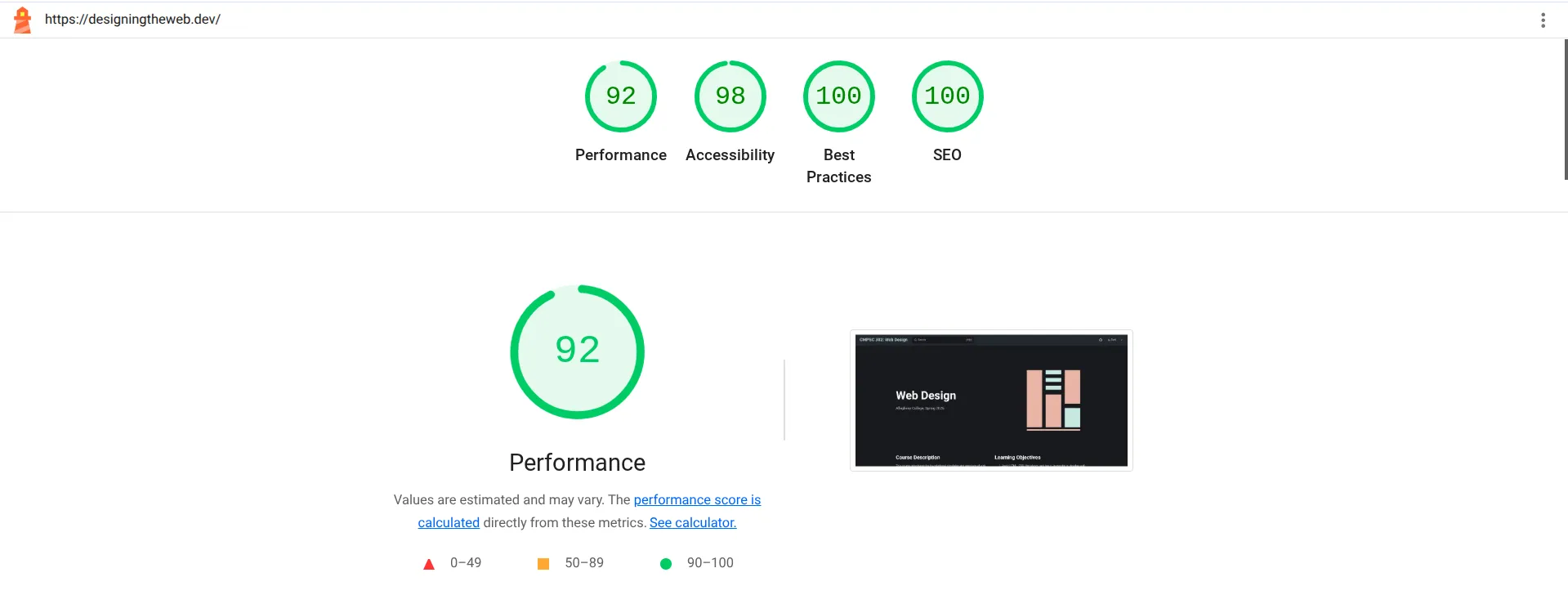
To see the results of your optimizations, you can use tools like Lighthouse,
which is built into Chrome DevTools.
While Lighthouse provides accessibility metrics for your site, it’s important to note
that the WebAIM WAVE tool is a more comprehensive set of WCAG A, AA, and AAA accessibility metrics.
Each section of the Lighthouse report not only gives you metrics, but tips on how to improve your
site in the given area. Following a “stoplight” pattern, you’ll recieve a green, yellow, or red light
for each section, which can help you prioritize your optimizations.
In some cases, optimizations may require server-level configuration that we don’t have access to on
platforms such as Github Pages.